# Welcome
Colossyan's API offers a programmable video creation service. It allows you to generate videos at scale. To facilitate this, we provide a **REST API** using standard **JSON** as request and response payload format. This way you can integrate our service into **any technology stack.**
### Features
* 💬 Over 600 voices
* 🌐 Over 70 languages
* 👄 Use any actor of your choice
* 👤 Create your own avatars through the API, and use them at your will
* :scales: Generate template videos at a massive scale, easily
* 📹 Everything that you can generate in the Colossyan Studio you can also generate via our API
* 🖼️ Embedded images
* :clapper: Embedded videos
* :notes: Embedded audios
* :abc: Embedded texts
* :telephone\_receiver: Get notified immediately via a callback mechanism
* :nail\_care: Thanks to our web-based templating and payload exporting options it's incredibly easy to get up-n-running.
### Jump right in
# Quickstart
Follow the next steps to generate your first video using Colossyan's API.
1. Grab your token as described in the [Authentication](/basics/editor) page.
2. Send your first request
```javascript
const token = "";
const api = "https://app.colossyan.com/api/v1";
const job = {
videoCreative: {
settings: {
name: "My first video",
videoSize: {
width: 1920,
height: 1080
}
},
scenes: [
{
tracks: [
{
type: "actor",
position: { x: 420, y: 0 },
size: { width: 1080, height: 1080 },
actor: "karen",
text: "This is my first video generated with Colossyan! Amazing!",
speakerId: "aquXcfLbkxpW4BBI5qKm"
}
]
}
]
}
};
const response = await fetch(`${api}/video-generation-jobs`, {
method: "POST",
headers: {
Authorization: `Bearer ${token}`,
"Content-Type": "application/json",
},
body: JSON.stringify(job),
});
const result = await response.json();
console.log(result); // { id, videoId }
```
{% hint style="info" %}
In the snippet above, we post a new *video generation job*. \
\
Let's walk through what you should expect the generated video to look like.
* The videos name will be *My first video*.
* It will have a width of *1920px* and a height of *1080px.*
* It will consist of a single scene
* We added an *actor track* to it, with the actor being *karen*.
* We configured the actor to say *This is my first video generated with Colossyan! Amazing!* using the voice of *aquXcfLbkxpW4BBI5qKm*.
* The actor is set to be *1080px \* 1080px* in size and it's top-left will be in the *(420;0)* coordinates, counting from the top-left, resulting in the actor being in the middle of the video.
{% endhint %}
4. If you successfully sent the request, you should have received two things in return.
1. An `id` that you can use to delete or request status updates on the job
2. A `videoId` that you'll be able to query the generated video with once it's ready.
5. Navigate to the workspace where you have created your API key. You should see the video generate. Once it's ready, it should look exactly like this
{% embed url="" %}
6. Congratulations! 🎉 You just generated your first video using our API!
{% hint style="info" %}
Generating the payloads for complex videos can get very complicated, very quickly (multiple scenes, and images and videos etc...). To get ahead of this, we provide a way to export the request body from the Colossyan video editor.
\
This way you can use our UI to craft your video templates easily, and then customize them at the last mile.
{% endhint %}
# Extracting request bodies from the web-editor
Constructing request bodies for complex video generation jobs can become very complicated very quickly. To get ahead of this we provide a way to use our web-based video-generation tool (*Colossyan Studio*) to export the payload for the video you see.
1. To do this, open any draft you'd like to generate via the API.
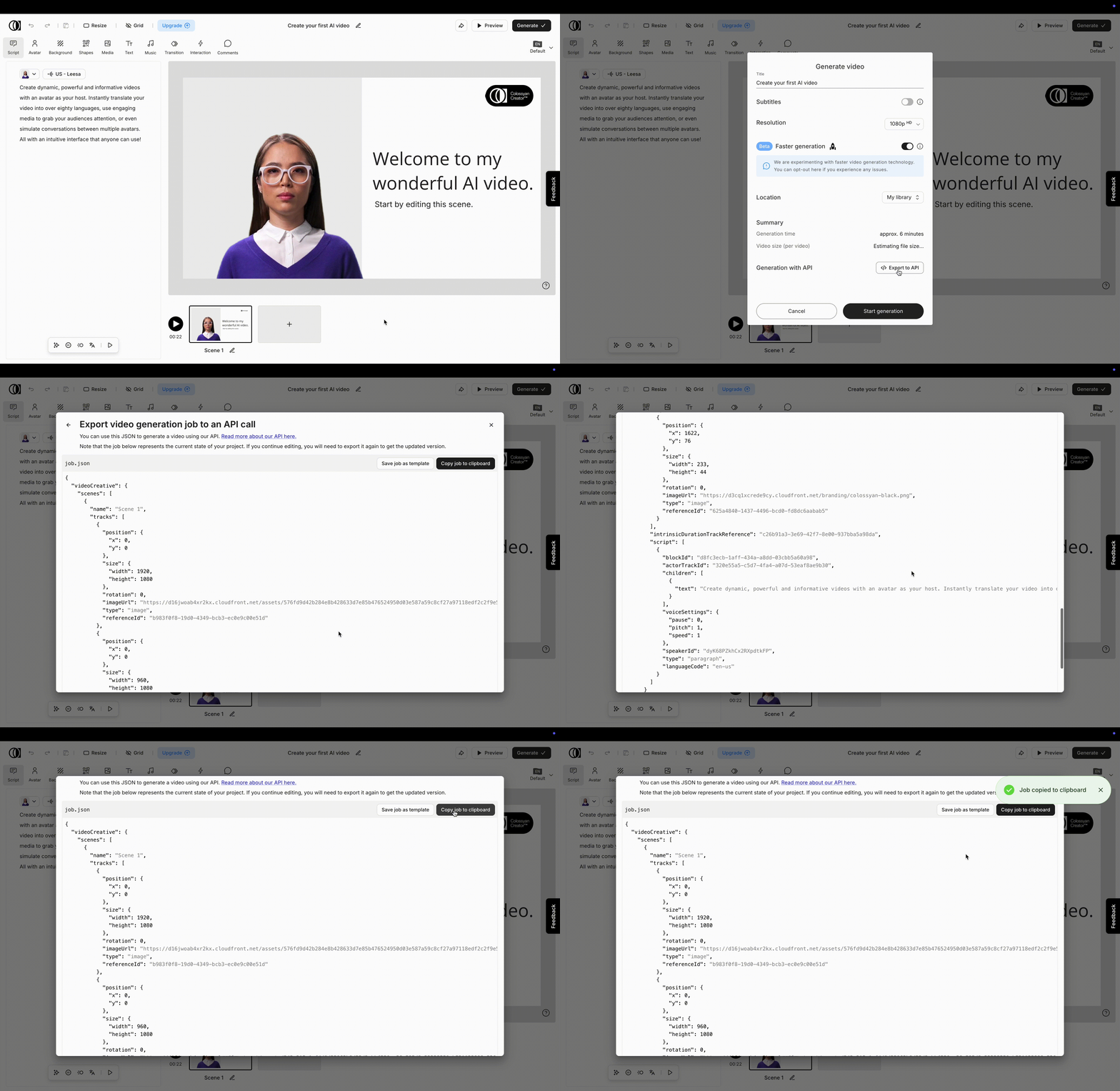
2. Click on the "Generate" button on the top right corner of your editor, than in the dialog appeared you should see a button called "Export to API", click that button.
1. *Note that you can only see this button if you have API access.*
3. In the appearing modal, you should see the request body that you can send to generate the exact video that you can see in the editor.
4. Feel free to customise this payload.
# Authentication
{% hint style="info" %}
You need to have a **Business** or **Enterprise** plan to be able to use our API. [Check out our pricing page for more info.](https://www.colossyan.com/pricing)
{% endhint %}
Colossyan's API is using [Bearer Authentication](https://swagger.io/docs/specification/v3_0/authentication/bearer-authentication/). This means, that every request has to be authenticated by sending the token in the `Authorization` header pre-pended by the text `Bearer` . See the example below:
```javascript
const response = await fetch(`${api}/video-generation-jobs`, {
method: "POST",
headers: {
Authorization: `Bearer ${token}`, // Authentication
"Content-Type": "application/json",
},
body: JSON.stringify(job),
});
```
You can create or find your existing tokens at the bottom of the **Workspace details** tab [in the Settings page](https://app.colossyan.com/settings).
{% hint style="info" %}
Each token belongs to a specific workspace. This is where are the generated videos that you create through the API will be listed. To keep things tidy, it is recommended to create a specific workspace for each use-case for the API.
{% endhint %}
# Endpoints
Stable features
```
https://app.colossyan.com/api/v1
```
Experimental features
```
https://app.colossyan.com/api
```
# Assets
Using the API, you can list the following assets:
* [List avatars](/basics/openapi/list-avatars)
* [List voices](/basics/openapi/list-voices)
{% hint style="info" %}
In each case, you'll get the assets that the workspace you have generated the token it has access to.
{% endhint %}
To create a new "instant" avatar please see the following page:
* [Create avatar](/avatar-creation/create-avatar)
# List avatars
The endpoint will return the available avatars for your workspace.
The types of avatars the endpoint will return:
* **Studio**: Avatars provided by Colossyan.
* **Scenario**: Also provided by Colossyan, but shown with a specific scenario background.
* **Instant**: Custom-made avatars. To learn how to create one using the API, check out the following page ⇒[Create avatar](/avatar-creation/create-avatar)
* **ssa\_lite/ssa\_studio**: These are also custom-made avatars. To learn more, visit [this link](https://www.colossyan.com/custom-avatar).
{% hint style="warning" %}
**Important:** *Scenario* and *Instant* avatars are not included by default. To access them, please contact support.
{% endhint %}
#### Avatar inference model and variant support
There are three different inference models supported by the API (returned by the `supportedInferenceModels` parameter):
* `legacy`
* `neo`
* `neo2`
There are multiple different avatar variants supported by the API (returned by the `supportedActorTrackVariant` parameter):
* `full_body`
* `bubble`
* `shoulder`
* `fullscreen` *(deprecated)*
* `halfscreen` *(deprecated)*
{% hint style="warning" %}
**Important:** Not all inference models support all avatar variants.
{% endhint %}
Avatar variant
Legacy supported
Neo supported
full_body
✅
❌
bubble
✅
✅
shoulder
✅
✅
## Retrieve a list of avatars
> Fetches a list of avatars that the user has access to.
```json
{"openapi":"3.0.3","info":{"title":"Avatar API","version":"1.0.0"},"servers":[{"url":"https://app.colossyan.com/api/v1","description":"V1 API"}],"security":[{"bearerAuth":[]}],"components":{"securitySchemes":{"bearerAuth":{"type":"http","scheme":"bearer"}},"schemas":{"Avatar":{"type":"object","properties":{"id":{"type":"string","description":"Stable ID of the underlying avatar record"},"name":{"type":"string","description":"Key in the database"},"display_name":{"type":"string","description":"Display name of the avatar"},"preview_url":{"type":"string","description":"URL to the avatar's preview video"},"version":{"type":"string","enum":["v1","v2"]},"type":{"type":"string","enum":["Studio","Scenario","Instant","ssa_lite","ssa_studio"]},"gender":{"type":"string","enum":["Male","Female"]},"age":{"type":"integer","description":"Age of the avatar"},"ethnicity":{"$ref":"#/components/schemas/ActorEthnicity"},"clothing_style":{"$ref":"#/components/schemas/ActorClothingStyle"},"style":{"$ref":"#/components/schemas/ActorStyle"},"quality":{"$ref":"#/components/schemas/ActorTrackQuality"},"emotions":{"type":"array","description":"Deprecated field, will be removed in future versions.","items":{"type":"string"}},"default_voice":{"type":"string","description":"Default voice for the avatar"},"views":{"type":"array","description":"A list of views supported by the avatar","items":{"type":"object","properties":{"viewVariantType":{"$ref":"#/components/schemas/ActorView"},"aspectRatio":{"type":"object","properties":{"height":{"type":"number"},"width":{"type":"number"},"ratio":{"type":"number"}}},"supportedActorTrackVariants":{"$ref":"#/components/schemas/ActorTrackVariant"},"supportedInferenceModels":{"type":"array","description":"Public inference models supported by this view","items":{"type":"string","enum":["legacy","neo","neo2"]}},"inferenceModel":{"deprecated":true,"type":"string","description":"Deprecated. Use supportedInferenceModels instead.","enum":["legacy","neo","omnia"]},"pictarSourceUrl":{"type":"string"},"images":{"type":"object","properties":{"thumbnail":{"type":"string"},"editor":{"type":"string"},"editor-happy":{"type":"string"},"editor-sad":{"type":"string"},"shoulder":{"type":"string"}}},"videos":{"type":"object","properties":{"base":{"type":"string"},"baseTransparent":{"type":"string"},"dynamicPreviewUrl":{"type":"string"},"dynamicShoulderPreviewUrl":{"type":"string"}}},"emotions":{"deprecated":true,"type":"array","items":{"type":"string"}},"bubbleVariantDefaults":{"$ref":"#/components/schemas/VariantDefaults"},"shoulderVariantDefaults":{"$ref":"#/components/schemas/VariantDefaults"},"logoApply":{"type":"object","description":"Logo branding configuration for this view"},"livePreviewEnabled":{"type":"boolean"}}}},"features":{"type":"object","properties":{"side_view":{"type":"boolean"},"emotions":{"type":"boolean"},"sitting":{"type":"boolean"},"logo_addition":{"type":"boolean"}}}},"required":["id","name","display_name","preview_url","version","gender","views","features","default_voice"]},"ActorEthnicity":{"type":"string","enum":["Caucasian","Black / African American","East Asian","Hispanic / Latino","South Asian","Middle Eastern / North African"]},"ActorClothingStyle":{"type":"string","enum":["Casual","Formal","Sport","Doctor","Electrician","Uniform","Nurse","Support"]},"ActorStyle":{"type":"string","enum":["Realistic","Cartoon"]},"ActorTrackQuality":{"type":"string","enum":["lite","studio","pictar"]},"ActorView":{"type":"string","enum":["front","side-front","side-back","sitting","close-up","vertical","front 2","conversation"]},"ActorTrackVariant":{"type":"array","items":{"type":"string","enum":["full_body","bubble","shoulder","fullscreen","halfscreen"]}},"VariantDefaults":{"type":"object","properties":{"crop":{"type":"object","properties":{"left":{"description":"The percentage of the image to crop from the left (0-1)","type":"number"},"top":{"description":"The percentage of the image to crop from the top (0-1)","type":"number"},"right":{"description":"The percentage of the image to crop from the right (0-1)","type":"number"},"bottom":{"description":"The percentage of the image to crop from the bottom (0-1)","type":"number"}}}}}}},"paths":{"/assets/actors":{"get":{"summary":"Retrieve a list of avatars","description":"Fetches a list of avatars that the user has access to.","operationId":"getActors","responses":{"200":{"description":"A list of avatars","content":{"application/json":{"schema":{"type":"array","items":{"$ref":"#/components/schemas/Avatar"}}}}},"401":{"description":"Unauthorized. Authentication required."},"500":{"description":"Internal server error."}}}}}}
```
# List voices
### Voices
{% openapi src="/files/OKEq6JqHV26DiBWMxw93" path="/assets/voices" method="get" %}
[voices.yaml](https://55465428-files.gitbook.io/~/files/v0/b/gitbook-x-prod.appspot.com/o/spaces%2F2Ywi5dAVPQ3D5ZEo1sKj%2Fuploads%2FHqvN6UNUjKBUuI7aipye%2Fvoices.yaml?alt=media\&token=4fe3c9e4-ed99-4883-969e-f27971107333)
{% endopenapi %}
# Video Generation
There are multiple ways to generate a video.
* You can generate a video based on a template (that you create). In this case you only send us a reference to the template and a list of dynamic variables that you'd like us to replace in the template. See more here: [Generating using a template](/video-generation/video-generation/generating-using-a-template)
* You can generate a video, by sending a whole *video-generation-job* descriptor JSON to our API. See more here: [Generating a video manually](/video-generation/video-generation/generating-a-video-manually)
{% hint style="warning" %}
Video generation through the API does not support interactive videos only regular ones.
{% endhint %}
Once a video generation has been triggered, you have multiple options to get notified once it's ready. See more here: [Receiving a generated video](/video-generation/video-generation/receiving-a-generated-video)
# Generating using a template
To generate a video based on a template:
1. Head over to Colossyan and create your desired video draft using our web-based studio
2. Once you are done, click on the "Generate" button on the top right corner of your editor, than in the dialog appeared click "Export to API"
{% hint style="info" %}
Note that this button is only visible if you have a plan which has access to the API. For more information, head over to our [pricing page.](https://www.colossyan.com/pricing)
{% endhint %}
3. On the top right corner of the appearing dialog click "Save job as a template" and make note of the appearing ID. This is the ID of your template job, you can send this id with your request to start generate the video.
{% hint style="warning" %}
**Keep in mind:** the template job ID refers to the state of the draft when you saved it. If later you edit this draft, you'll need to create another template id to represent the changes.
{% endhint %}
4. Now you have everything to send us a video generation request using the API endpoint below.
{% openapi src="/files/T5PhPQ19H5tfs2OQxChB" path="/video-generation-jobs/template-jobs" method="post" %}
[template-jobs.yaml](https://55465428-files.gitbook.io/~/files/v0/b/gitbook-x-prod.appspot.com/o/spaces%2F2Ywi5dAVPQ3D5ZEo1sKj%2Fuploads%2Foba8pOcUVmkeSONNx04s%2Ftemplate-jobs.yaml?alt=media\&token=ae6836e2-0615-4094-b895-21cb8504ed2a)
{% endopenapi %}
# Generating a video manually
You can generate a video by sending us a video-generation-job descriptor JSON. This is essentially a recipe for a video. Constructing such a recipe manually for complex videos can become tedious very quickly. **Due to this we strongly recommend to either:**
* Extract the video-generation-job payload from our web-based UI editor. More details here: [Extracting request bodies from the web-editor](/getting-started/publish-your-docs)
* Or to generate based on a template. More details here: [Generating using a template](/video-generation/video-generation/generating-using-a-template)
***
### Important concepts
To better understand the API, it's recommended to get an understanding of the following building blocks first:
* Scenes
* A scene is a logical consolidation of related content.
* A video can consist of multiple scenes. These scenes are concatenated together. **Think of them as slides on a presentation.** Each scene is meant to aggregate and encapsulate related content.
* Scenes offer a lot of convenience in timing their content, however it is completely up to the individual to decide how to divide the content into scenes.
* Tracks
* Tracks are the building blocks of scenes. You define the content of the video in tracks.
* There are different types of tracks, for different purposes. To differentiate between them we use the `type` property.
### Neo2 generations
To use Neo2 as the avatar generation technology instead of Neo, set the `videoCreative.settings.useNeo2Generation` to `true` in your request payload.
## Create a video generation job
> Submits a new video generation job for processing.
```json
{"openapi":"3.0.3","info":{"title":"Video Generation Job API","version":"1.0.0"},"servers":[{"url":"https://app.colossyan.com/api/v1","description":"V1 API"}],"security":[{"bearerAuth":[]}],"components":{"securitySchemes":{"bearerAuth":{"type":"http","scheme":"bearer","bearerFormat":"JWT"}},"schemas":{"VideoGenerationJob":{"type":"object","properties":{"dynamicVariables":{"type":"object","description":"Dynamic variables to be loaded into the template."},"callback":{"type":"string","description":"URL for the callback."},"callbackPayload":{"type":"object","description":"Payload for the callback."},"videoCreative":{"$ref":"#/components/schemas/VideoCreative","description":"The video creative details."}},"required":["videoCreative"]},"VideoCreative":{"type":"object","properties":{"settings":{"type":"object","properties":{"videoSize":{"type":"object","properties":{"width":{"type":"number","description":"Width of the video in pixels"},"height":{"type":"number","description":"Height of the video in pixels"}},"required":["width","height"]},"name":{"type":"string","description":"Name of the video"},"alphaChannel":{"type":"boolean","description":"Whether to attach the alpha-channel to the video or not. If true, only single-scene videos containing a single actor tracks are supported."},"useNeo2Generation":{"type":"boolean","description":"Whether to use Neo2 generation for avatars"}},"required":["videoSize","name"]},"scenes":{"type":"array","description":"List of scenes in the video","items":{"type":"object","properties":{"name":{"type":"string","description":"Name of the scene."},"duration":{"type":"number","description":"Duration of the scene."},"intrinsicDurationTrackReference":{"type":"string","description":"Reference to a track's referenceId in the scene. If the referenced track has a duration, the scene duration will be the same as the track duration."},"transition":{"$ref":"#/components/schemas/Transition"},"tracks":{"type":"array","description":"List of tracks in the scene.","items":{"oneOf":[{"$ref":"#/components/schemas/ActorTrack"},{"$ref":"#/components/schemas/ImageTrack"},{"$ref":"#/components/schemas/VideoTrack"},{"$ref":"#/components/schemas/TextTrack"},{"$ref":"#/components/schemas/AudioTrack"}]}}},"required":["tracks"]}}},"required":["settings","scenes"]},"Transition":{"type":"object","description":"The transition to use when transitioning to the next scene","properties":{"type":{"type":"string","description":"Type of transition.","enum":["fade","wipeleft","wiperight","wipeup","wipedown","smoothleft","smoothright","smoothup","smoothdown","circlecrop","rectcrop","circleopen","horzopen","vertopen","circleclose","horzclose","vertclose","slideleft","slideright","slideup","slidedown","hblur"]},"duration":{"type":"number","description":"Duration of the transition."}},"required":["type","duration"]},"ActorTrack":{"type":"object","description":"Represents an actor in the scene.","properties":{"type":{"type":"string","enum":["actor"],"description":"Type of track."},"variant":{"$ref":"#/components/schemas/ActorTrackVariant"},"view":{"$ref":"#/components/schemas/ActorView"},"actor":{"type":"string","description":"The name field of the actor"},"audioUrl":{"type":"string","description":"A publicly accessible URL to the audio file that the actor will speak."},"text":{"type":"string","description":"Text content for the actor to speak."},"speakerId":{"type":"string","description":"The name of the voice to use."},"position":{"$ref":"#/components/schemas/Position"},"size":{"$ref":"#/components/schemas/Size"},"rotation":{"$ref":"#/components/schemas/Rotation"},"referenceId":{"$ref":"#/components/schemas/ReferenceId"}}},"ActorTrackVariant":{"type":"string","enum":["full_body","bubble","shoulder"]},"ActorView":{"type":"string","enum":["front","side-front","side-back","sitting"]},"Position":{"type":"object","properties":{"x":{"type":"number","description":"X-coordinate of the track."},"y":{"type":"number","description":"Y-coordinate of the track."}}},"Size":{"type":"object","properties":{"width":{"type":"number","description":"Width of the track in pixels."},"height":{"type":"number","description":"Height of the pixels."}}},"Rotation":{"type":"number","description":"Rotation of the track. (-359 to 359)"},"ReferenceId":{"type":"string","description":"Reference ID of the track."},"ImageTrack":{"type":"object","description":"An embedded image in the scene.","properties":{"type":{"type":"string","enum":["IMAGE"],"description":"Type of track."},"imageUrl":{"type":"string","description":"A publicly accessible URL to the image file."},"position":{"$ref":"#/components/schemas/Position"},"size":{"$ref":"#/components/schemas/Size"},"rotation":{"$ref":"#/components/schemas/Rotation"},"referenceId":{"$ref":"#/components/schemas/ReferenceId"}}},"VideoTrack":{"type":"object","description":"An embedded video in the scene.","properties":{"type":{"type":"string","enum":["VIDEO"],"description":"Type of track."},"videoUrl":{"type":"string","description":"URL of the video."},"volume":{"type":"number","description":"Volume level."},"position":{"$ref":"#/components/schemas/Position"},"size":{"$ref":"#/components/schemas/Size"},"rotation":{"$ref":"#/components/schemas/Rotation"},"referenceId":{"$ref":"#/components/schemas/ReferenceId"}}},"TextTrack":{"type":"object","description":"An embedded text in the scene.","properties":{"type":{"type":"string","enum":["TEXT"],"description":"Type of track."},"text":{"type":"string","description":"Text content."},"fontSize":{"type":"number","description":"Font size."},"color":{"type":"string","description":"Color of the text."},"backgroundColor":{"type":"string","description":"Background color of the text."},"position":{"$ref":"#/components/schemas/Position"},"size":{"$ref":"#/components/schemas/Size"},"rotation":{"$ref":"#/components/schemas/Rotation"},"referenceId":{"$ref":"#/components/schemas/ReferenceId"}}},"AudioTrack":{"type":"object","description":"An embedded audio in the scene.","properties":{"type":{"type":"string","enum":["AUDIO"],"description":"Type of track."},"audioUrl":{"type":"string","description":"A publicly accessible URL to the audio file."},"volume":{"type":"number","description":"Volume level for the audio track."}}}}},"paths":{"/video-generation-jobs":{"post":{"summary":"Create a video generation job","description":"Submits a new video generation job for processing.","operationId":"createVideoGenerationJob","requestBody":{"required":true,"content":{"application/json":{"schema":{"$ref":"#/components/schemas/VideoGenerationJob"}}}},"responses":{"200":{"description":"Job created successfully","content":{"application/json":{"schema":{"type":"object","properties":{"id":{"type":"string","description":"The ID of the created job."},"videoId":{"type":"string","description":"The provisioned ID of the generated video."}}}}}},"400":{"description":"Bad Request. Invalid input data."},"401":{"description":"Unauthorized. Authentication required."},"500":{"description":"Internal server error."}}}}}}
```
{% hint style="info" %}
For advanced use-cases and customisations (such as advanced timings or animations), please reach out to us, so we can help out with a solution engineer to make sure you achieve what you are after. Read more here: [Advanced use-cases](/advanced/advanced-use-cases).
{% endhint %}
# Receiving a generated video
{% hint style="info" %}
There are three ways to get a video, that was generated via our APIs.
1. You can get notified via our callback once a video is ready (recommended in production)
2. You can poll it using other API endpoints
3. You can download the video from your Colossyan Account after navigating to the workspace where the API key was created.
{% endhint %}
### Callback
Upon posting a new video generation job, you have the opportunity to add a `callback` and some `callbackPayload` to the job. When the job is successful our service will issue a **POST** request to the url you provided in the `callback` field.
In the body of this post message, we add the following fields:
| Key | Description |
| -------------------------------------------------------------------------------------------------------- | ------------------------------------------------------------------------ |
| `url` | Contains the public url of the generated video file. |
| `videoUrl` and `shareUrl` | Contains a unique url pointing at Colossyans video sharing platform. |
| `status` | The status of the video generation. Can either be `finished` or `failed` |
| ...and everything that was provided at the job's generation as `callbackPayload` and `dynamicVariables`. | |
### Polling
Due to the asynchronous nature of video-generations, first you need to query the video-generation-job itself, to see the status of it. To do this, use the API below.
{% openapi src="/files/Ii7chHq2XhIO7zrcyhgg" path="/video-generation-jobs/{videoId}" method="get" %}
[index.yaml](https://55465428-files.gitbook.io/~/files/v0/b/gitbook-x-prod.appspot.com/o/spaces%2F2Ywi5dAVPQ3D5ZEo1sKj%2Fuploads%2FfYZ7eiatXGSDDkB7Ma31%2Findex.yaml?alt=media\&token=e240d51f-3fad-4655-b973-8123721cdd7a)
{% endopenapi %}
Continue to poll the status of the job, until it returns either `finished` or `failed`. In case it successfully finished generating use the API below to get the generated video.
* You can get the `videoId` both when queueing the job itself, or when fetching it's status.
{% openapi src="/files/7FxbXzHVwwGoAxGbyxVs" path="/generated-videos/{videoId}" method="get" %}
[index.yaml](https://55465428-files.gitbook.io/~/files/v0/b/gitbook-x-prod.appspot.com/o/spaces%2F2Ywi5dAVPQ3D5ZEo1sKj%2Fuploads%2FMj174DbCoMdmffVKYlqT%2Findex.yaml?alt=media\&token=9d1107fb-665b-4c1f-b3bd-56604bc92348)
{% endopenapi %}
An example of a script to poll a job can be found below:
```javascript
const token = "";
const jobId = "";
const videoId = "";
const jobUrl = `https://app.colossyan.com/api/v1/video-generation-jobs/${jobId}`;
const videoUrl = `https://app.colossyan.com/api/v1/generated-videos/${videoId}`;
async function pollStatus() {
const jobResponse = await fetch(jobUrl, {
method: "GET",
headers: {
Authorization: `Bearer ${token}`,
"Content-Type": "application/json",
},
});
const result = await jobResponse.json();
const status = result.status;
if (status !== "finished" && status !== "failed") {
console.log(
`Video status: ${status}, progress: ${result.progress}/${result.maximumProgress}`
);
setTimeout(pollStatus, 5000); // Retry every 5 seconds
} else {
const videoResponse = await fetch(videoUrl, {
method: "GET",
headers: {
Authorization: `Bearer ${token}`,
"Content-Type": "application/json",
},
});
const result = await videoResponse.json();
console.log(result);
}
}
pollStatus();
```
### Getting the video from the Colossyan App
1. Open [Colossyan](https://app.colossyan.com/)
2. Navigate to workspace in which the API key was used to generate the video
3. [Open the generated videos page](https://app.colossyan.com/my-library?filter=video).
1. The video should be listed there
2. You should also see it if it's currently being generated. In this case, it'll show the status of the job.
# Generated videos
Throught the API it is possible to retrieve or delete a video that was already generated.
* [Retrieve a video](/video-generation/generated-videos/retrieve-a-video)
* [Delete a video](/video-generation/generated-videos/delete-a-video)
# Retrieve a video
## Get details of a generated video
> Retrieves detailed information about a specific generated video.
```json
{"openapi":"3.0.3","info":{"title":"Generated Videos API","version":"1.0.0"},"servers":[{"url":"https://app.colossyan.com/api/v1","description":"V1 API"}],"security":[{"bearerAuth":[]}],"components":{"securitySchemes":{"bearerAuth":{"type":"http","scheme":"bearer"}},"schemas":{"GeneratedVideoRecord":{"type":"object","properties":{"id":{"type":"string","description":"The unique identifier of the generated video."},"jobId":{"type":"string","description":"The ID of the video generation job that created this video."},"publicUrl":{"type":"string","description":"The public URL of the generated video."},"thumbnailUrl":{"type":"string","description":"URL of the video's thumbnail."},"name":{"type":"string","description":"The name of the video."},"createdAt":{"type":"string","format":"date-time","description":"The date and time the video was created."},"videoSizeBytes":{"type":"number","description":"The size of the video in bytes.","nullable":true},"videoDurationSeconds":{"type":"number","description":"The duration of the video in seconds.","nullable":true}}}}},"paths":{"/generated-videos/{videoId}":{"get":{"summary":"Get details of a generated video","description":"Retrieves detailed information about a specific generated video.","operationId":"getGeneratedVideo","parameters":[{"name":"videoId","in":"path","required":true,"schema":{"type":"string"},"description":"The ID of the generated video."}],"responses":{"200":{"description":"Generated video details retrieved successfully","content":{"application/json":{"schema":{"$ref":"#/components/schemas/GeneratedVideoRecord"}}}},"400":{"description":"Bad Request. Invalid videoId parameter."},"401":{"description":"Unauthorized. Authentication required."},"404":{"description":"Not Found. Generated video not found."},"500":{"description":"Internal server error."}}}}}}
```
# Delete a video
## DELETE /generated-videos/{videoId}
> Delete a generated video
```json
{"openapi":"3.0.3","info":{"title":"Generated Videos API","version":"1.0.0"},"servers":[{"url":"https://app.colossyan.com/api/v1","description":"V1 API"}],"security":[{"bearerAuth":[]}],"components":{"securitySchemes":{"bearerAuth":{"type":"http","scheme":"bearer"}}},"paths":{"/generated-videos/{videoId}":{"delete":{"summary":"Delete a generated video","operationId":"deleteGeneratedVideo","parameters":[{"name":"videoId","in":"path","required":true,"schema":{"type":"string"},"description":"The ID of the generated video."}],"responses":{"200":{"description":"Video deleted successfully","content":{"application/json":{"schema":{"$ref":"#/components/schemas/GeneratedVideoRecord"}}}},"400":{"description":"Bad Request. Invalid videoId parameter."},"401":{"description":"Unauthorized. Authentication required."},"404":{"description":"Not Found. Generated video not found."},"500":{"description":"Internal server error."}}}}}}
```
# Video generation job
A video generation job holds data respective the video generation.
For example by retrieving the generation job you can tell which status the video generation is currenlty in. (e.g. generating, finished, failed)
* [Retrieve video generation job](/video-generation/video-generation-job/retrieve-video-generation-job)
* [Delete video generation job](/video-generation/video-generation-job/delete-video-generation-job)
# Retrieve video generation job
## Get video generation job status
> Retrieves the status, progress, and details of a specific video generation job.
```json
{"openapi":"3.0.3","info":{"title":"Video Generation Job Status API","version":"1.0.0"},"servers":[{"url":"https://app.colossyan.com/api/v1","description":"V1 API"}],"security":[{"bearerAuth":[]}],"components":{"securitySchemes":{"bearerAuth":{"type":"http","scheme":"bearer"}}},"paths":{"/video-generation-jobs/{videoGenerationJobId}":{"get":{"summary":"Get video generation job status","description":"Retrieves the status, progress, and details of a specific video generation job.","operationId":"getVideoGenerationJobStatus","parameters":[{"name":"videoGenerationJobId","in":"path","required":true,"schema":{"type":"string"},"description":"The ID of the video generation job."}],"responses":{"200":{"description":"Video generation job status and details retrieved successfully. The return value also contains all of the video-generation-job itself, which is not detailed here.","content":{"application/json":{"schema":{"type":"object","properties":{"status":{"type":"string","description":"The current status of the video generation job.","enum":["in_queue","preprocessing","preprocessing_finished","generating","finished","failed","deleted"]},"videoId":{"type":"string","description":"The ID of the provisioned generated video"},"progress":{"type":"number","description":"The current progress of the video generation job."},"maximumProgress":{"type":"number","description":"The maximum progress value of the video generation job."}}}}}},"400":{"description":"Bad Request. Invalid videoGenerationJobId parameter."},"401":{"description":"Unauthorized. Authentication required."},"404":{"description":"Not Found. Video generation job not found."},"500":{"description":"Internal server error."}}}}}}
```
# Delete video generation job
Deleting a video generation job will stop the video generation processing.
## Delete a video generation job
> Deletes a specific video generation job and stops any ongoing processing.
```json
{"openapi":"3.0.3","info":{"title":"Video Generation Job Status API","version":"1.0.0"},"servers":[{"url":"https://app.colossyan.com/api/v1","description":"V1 API"}],"security":[{"bearerAuth":[]}],"components":{"securitySchemes":{"bearerAuth":{"type":"http","scheme":"bearer"}}},"paths":{"/video-generation-jobs/{videoGenerationJobId}":{"delete":{"summary":"Delete a video generation job","description":"Deletes a specific video generation job and stops any ongoing processing.","operationId":"deleteVideoGenerationJob","parameters":[{"name":"videoGenerationJobId","in":"path","required":true,"schema":{"type":"string"},"description":"The ID of the video generation job."}],"responses":{"200":{"description":"Video generation job status and details retrieved successfully. The return value also contains all of the video-generation-job itself, which is not detailed here."},"400":{"description":"Bad Request. Invalid videoGenerationJobId parameter."},"401":{"description":"Unauthorized. Authentication required."},"404":{"description":"Not Found. Video generation job not found."},"500":{"description":"Internal server error."}}}}}}
```
# Create avatar
You can create an "instant" avatar by sending an image or video link to the API. The avatar will be generated based on the provided media.
The API will return the avatar's name, which can then be used for generating video with the avatar.
## Creates a new avatar.
> Creates a new avatar from the sent properties.
```json
{"openapi":"3.0.3","info":{"title":"Avatar API","version":"1.0.0"},"servers":[{"url":"https://app.colossyan.com/api/v1","description":"V1 API"}],"security":[{"bearerAuth":[]}],"components":{"securitySchemes":{"bearerAuth":{"type":"http","scheme":"bearer"}},"schemas":{"PostActorsRequestBody":{"type":"object","properties":{"displayName":{"type":"string","description":"Name to be displayed for the avatar"},"sourceFileUrl":{"type":"string","description":"URL to the video or image file for the avatar to be created from"},"gender":{"type":"string","enum":["Male","Female"]}}}}},"paths":{"/assets/actors":{"post":{"summary":"Creates a new avatar.","description":"Creates a new avatar from the sent properties.","operationId":"postActors","requestBody":{"required":true,"content":{"application/json":{"schema":{"$ref":"#/components/schemas/PostActorsRequestBody"}}}},"responses":{"201":{"description":"Avatar created successfully.","content":{"application/json":{"schema":{"type":"object","properties":{"name":{"type":"string","description":"Used to identify the avatar, can be used for video generation"}}}}}},"400":{"description":"Bad Request. Invalid input data."},"401":{"description":"Unauthorized. Authentication required."},"500":{"description":"Internal server error."}}}}}}
```
# Advanced use-cases
In general, we always recommend to generate videos either by:
* Extracting the video-generation-job payload from our web-based UI editor. More details here: [Extracting request bodies from the web-editor](/getting-started/publish-your-docs).
* Or by [Generating using a template](/video-generation/video-generation/generating-using-a-template)
If for some reason either of these options wouldn't be enough to achieve what you are after, in the following pages you can read about some advanced concepts, when working with our API.
# Using template variables
Dynamic template variables are placeholders within your video script or scene text element that can be replaced with different values each time a video is generated.
They allow you to customize content dynamically without modifying the base template.
***
Learn more on the following pages on how to use them:
* [Script template variables](/advanced/using-template-variables/script-template-variables)
* [Text template variables](/advanced/using-template-variables/text-template-variables)
# Script template variables
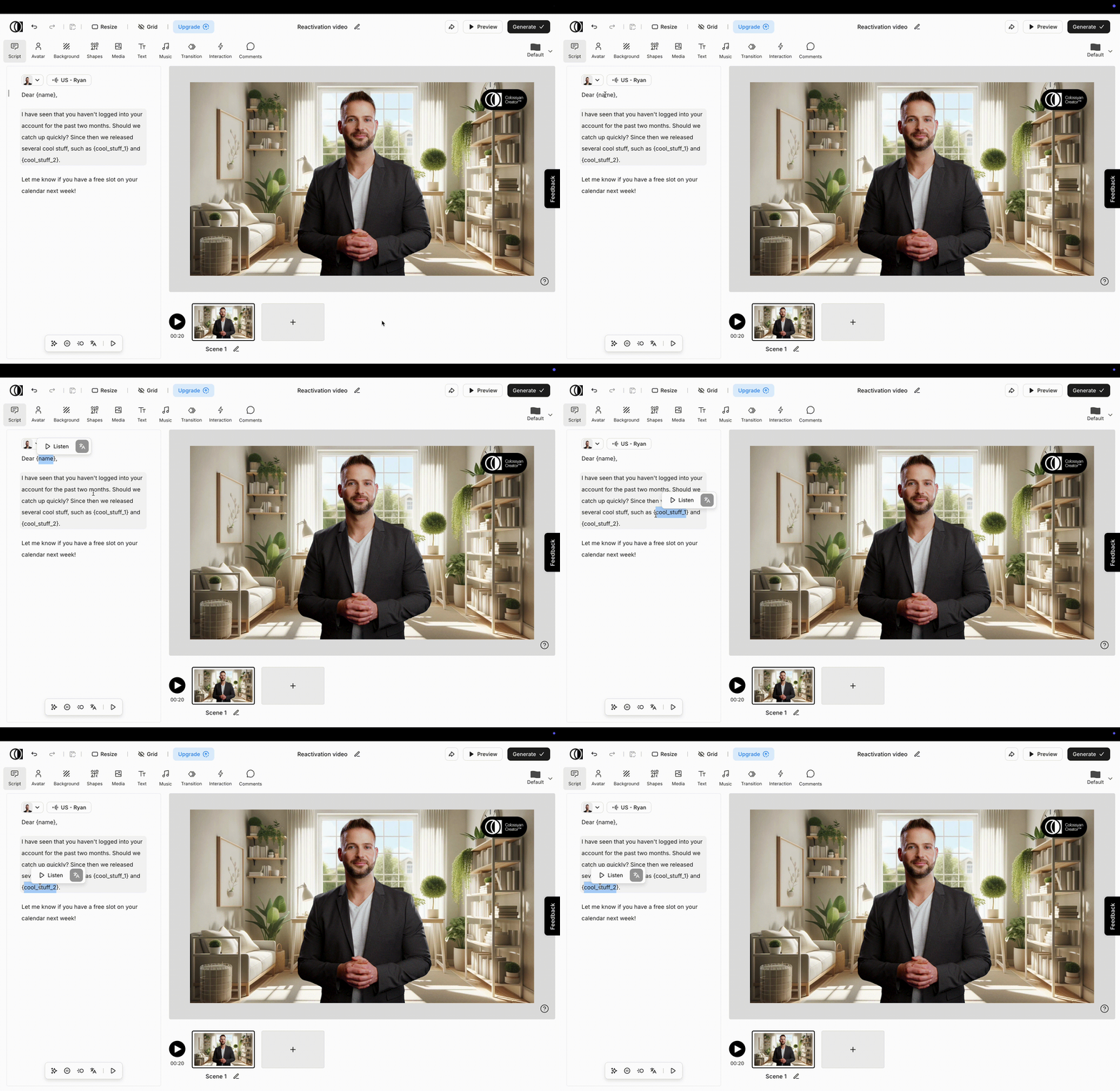
You can create dynamic template variables in the script on any scene, by simply typing a variable name between curly braces at any point of the script.
**For example in the following script...**
,,,
*Dear {name},*\
\
*I have seen that you haven't logged into your account for the past two months. Should we catch up quickly? Since then we released several cool stuff, such as {cool\_stuff\_1} and {cool\_stuff\_2}.*\
\
*Let me know if you have a free slot on your calendar next week!*
*,,,*
**...you have created three dynamic variables**:
1. `name`
2. `cool_stuff_1`
3. `cool_stuff_2`
### Providing values for the variables
You can replace these template variables with their values, by sending their values in the request body when generating a video. The API will replace the placeholders in the script with the corresponding values you provide.
For example:
```json
{
"dynamicVariables": {
"name": "John",
"cool_stuff_1": "AI-powered task automation",
"cool_stuff_1": "Slack & Google Calendar integration",
},
// other request parameters...
}
```
### Generating a video
On how to generate a video you can find more information here: [Video Generation](/video-generation/video-generation)
# Text template variables
You can use dynamic template variables in any text element, by simply typing a variable name between curly braces.
Take the following example:
,,,
*Hey {name}, we’ve been improving!*
*Our newest feature, {feature\_name}, is live!*
,,,
In this text we created two template variables: `name` *and* `feature_name` .
### Providing values for the variables
You can replace these template variables with their values, by sending their values in the request body when generating a video. The API will replace the placeholders in the text with the corresponding values you provide.
For example:
```json
{
"dynamicVariables": {
"name": "John",
"feature_name": "AI-powered task automation",
},
// other request parameters...
}
```
### Generating a video
On how to generate a video you can find more information here: [Video Generation](/video-generation/video-generation)
# Timing
## Timing
{% hint style="info" %}
Each track and scene has to have a defined or inferable duration. We provide multiple ways of defining these timing constraints. It is up to you to decide which way you would like to use.
{% endhint %}
### Scene duration
You can set the duration of each scene in three different ways. In either case no matter how long the duration of the tracks within the scene are, everything longer than the scene itself will be cut out.
#### Explicit scene duration
You can explicitly define the scene's duration in milliseconds by setting the `duration` property on it.
const job = {
  videoCreative: {
    settings: {
      name: "Simple video with a single scene",
      videoSize: { height: 1080, width: 1920 },
    },
    scenes: [
      {
        name: "Scene with explicit duration",
        duration: 2000, // ms
        tracks: [
          {
            type: "actor",
            position: { x: 200, y: 200 }, // From the top left in pixels
            size: { height: 680, width: 1520 }, // In pixels
            text: "This scene is exactly two seconds long. It does not matter how long any of the tracks are.",
            speakerId: "en-GB-RyanNeural",
            actor: "ryan",
          },
        ],
      },
    ],
  },
};
#### Referring to a track
If you would like your scene to be exactly as long as one of the tracks in it, you can do so by referring to the track on the scene. In this case Colossyan will try to figure out the length of the track in isolation first, and if it can do so, it'll assign the same duration to the scene itself.
{% hint style="info" %}
In this case the track duration can only be inferred if it has an default or an explicitly defined duration.
\
This is very handy when you would like to make sure that the scene will not end before an actor finishes speaking, or before the end of a video.
{% endhint %}
Use the `intrinsicDurationTrackReference` property in the scene to refer to the `referenceId` of the track you would like the scene to have an equal duration with.
const job = {
  videoCreative: {
    settings: {
      name: "Simple video with a single scene",
      videoSize: { height: 1080, width: 1920 },
    },
    scenes: [
      {
        name: "This scene lasts until the actor stops speaking",
        intrinsicDurationTrackReference: "speech",
        tracks: [
          {
            type: "actor",
            referenceId: "speech",
            position: { x: 200, y: 200 }, // From the top left in pixels
            size: { height: 680, width: 1520 }, // In pixels
            text: "It does not matter how long I am talking. The scene will last as long as necessary.",
            speakerId: "en-GB-RyanNeural",
            actor: "ryan",
          },
        ],
      },
    ],
  },
};
Combining this technique with timing the tracks by referring to the scene's start and end time is a very powerful combination, that allows you to achieve intricate videos with the flexibility of handing varying track lengths.
#### Default scene duration
If you do not explicitly set the duration, nor refer to a track within the scene, Colossyan will try to infer the best guess for the duration of the scene by looking at the tracks, and trying to find a single one with either an intrinsic or explicitly set duration.
This is only possible if there is only one track in the scene with a default or explicitly set duration. Otherwise Colossyan will throw a schema validation error, when queueing the job.
```javascript
const job = {
videoCreative: {
settings: {
name: "Simple video with a single scene",
videoSize: { height: 1080, width: 1920 },
},
scenes: [
{
name: "This scene defaults to last until the end of the video",
tracks: [
{
type: "video",
position: { x: 200, y: 200 }, // From the top left in pixels
size: { height: 680, width: 1520 }, // In pixels
videoUrl: "https://your.cdn.com/public/videos/some_video.mp4",
},
],
},
],
},
};
```
### Track duration
Track duration can be set in three different ways. No matter which way you chose, if the scene is shorter, the track will be cut to fit it.
If however the track you provided does not last long enough to reach the duration defined by you (for example a video ends earlier, or the actor finishes speaking), the track will disappear earlier than you defined.
#### Explicit track duration
Similarly to setting a scene's explicit duration, you can set the duration of a track by setting the `duration` property on it. The duration should be set in milliseconds.
const job = {
  videoCreative: {
    settings: {
      name: "Simple video with a single scene",
      videoSize: { height: 1080, width: 1920 },
    },
    scenes: [
      {
        name: "Scene with a single track with an explicitly set duration",
        tracks: [
          {
            type: "image",
            duration: 3000, // in ms
            position: { x: 200, y: 200 }, // From the top left in pixels
            size: { height: 680, width: 1520 }, // In pixels
            imageUrl: "https://your.cdn.com/public/videos/image.jpg",
          },
        ],
      },
    ],
  },
};
#### Referring to the scene's start and end time
You can set the track to start after a certain amount of time has passed since the beginning of the scene, and to last until a certain amount of time before the end of the scene. By setting both of these variables, you are essentially defining the duration of the track as well.
You can define these gaps from the start and end of the scene by setting the `startTimeGap` and the `endTimeGap` properties on the track.
{% hint style="info" %}
You can only time the track this way if the scene itself does not rely on the track's duration.
{% endhint %}
const job = {
  videoCreative: {
    settings: {
      name: "Simple video with a single scene",
      videoSize: { height: 1080, width: 1920 },
    },
    scenes: [
      {
        name: "Scene with a single track with a duration set by startTimeGap and endTimeGap",
        duration: 5000,
        tracks: [
          {
            type: "image",
            startTimeGap: 1000, // ms
            endTimeGap: 2000, // ms
            position: { x: 200, y: 200 }, // From the top left in pixels
            size: { height: 680, width: 1520 }, // In pixels
            imageUrl: "https://your.cdn.com/public/videos/image.jpg",
          },
        ],
      },
    ],
  },
};
#### Default track duration
If you do not define the duration of the track in any way, Colossyan will try to fall back to the intrinsic duration of the track if there is any.
**Only video and actor tracks have intrinsic durations.**
* In case of a video track the intrinsic duration equals the duration of the video itself.
* In case of an actor track the intrinsic duration equals the duration of the lipsynched video of the actor speaking.
```javascript
const job = {
videoCreative: {
settings: {
name: "Simple video with a single scene",
videoSize: { height: 1080, width: 1920 },
},
scenes: [
{
name: "Scene with a single track with an intrinsic duration",
tracks: [
{
type: "video",
position: { x: 200, y: 200 }, // From the top left in pixels
size: { height: 680, width: 1520 }, // In pixels
imageUrl: "https://your.cdn.com/public/videos/some_video.mp4",
},
],
},
],
},
};
```
### Timing tracks within a scene
To time when the track should start or end within the scene, you can use the `startTimeGap` or the `endTimeGap` properties on the track.
{% hint style="info" %}
If you find yourself in a situation where these options are not suitable for your use-case, double check if there is a way to subdivide your content to different scenes, to achieve the result you are looking for.
{% endhint %}
### Good practices
* Use `startTimeGap` and `endTimeGap` to make videos that work well for dynamic content.
* Refer to the track's duration in scenes to deal with dynamic track lengths.
* Do not over-constrain the timing of your scenes and tracks. This will yield in a schema validation error.
[^1]: Explicit scene duration
[^2]: Referencing the track with referenceId of "speech".
[^3]: Explicit track duration setting.
[^4]:
[^5]: Defining the track's ending compared to the scene's duration.
# Knowledge to draft
{% hint style="danger" %}
Experimental endpoints are not yet finalised. They can change at any point, without notice. To reflect this, these endpoints are **not** **available** on the `/v1/` endpoint (See more here: [Endpoints](/basics/endpoints))
{% endhint %}
{% openapi src="/files/fDRLFmF0gyo8ZQGYZM90" path="/knowledge-to-draft/generate-draft" method="post" %}
[generate-draft.yaml](https://55465428-files.gitbook.io/~/files/v0/b/gitbook-x-prod.appspot.com/o/spaces%2F2Ywi5dAVPQ3D5ZEo1sKj%2Fuploads%2FrmOgCVgaPraFyiGqQCr2%2Fgenerate-draft.yaml?alt=media\&token=36504d0f-762f-4219-bba2-eb6af0ae7519)
{% endopenapi %}
.gif?alt=media&token=a191a66b-48a2-4f96-a530-b46a5e7ddb5b)